
Forwarding traffic from external hosts to guest VMs on KVM host

This is so simple but took me forever to find a concise source on the Internet even with the AI results provided by most search engines now.

Background: I set up KVM (qemu/libvirtd) on a Linux host, create a VM on it. I want to be able to SSH (goes for other in-bound traffic such as HTTP as well) from an external host e.g., a separate windows laptop to the guest VM running on the KVM Linux host.

<Windows Laptop> — SSH —> <KVM host> —> <Guest-VM>

The default network created for the guest-VM on KVM is NAT (and goes over the virbr0 interface created on the KVM host during the KVM installation)

To illustrate, I created two guest-VMs (both Linux) and I want to be able to SSH to them from another Windows system in my home network. This means I need to connect to a designated unused port (e.g., 2222 or 2223) on the KVM host via SSH, and have the KVM host forward that connection to the SSHD service running on the guest VM

1/ You MUST add a rule to the LIBVIRT_FWI that allows that traffic otherwise you get something like “Connection refused” for SSH for example. By default, only traffic that is part of on-going session is forwarded, which in effect means you can’t initiate traffic to the VM from outside the KVM host (inserts as rule #1 on top of the chain).
For some reason, the firewall-cmd command works until you restart the system or restart firewalld service (which fails that there is no table/chain with that name), so using the iptables command instead. The “-t filter” can also be omitted since it is the default table (as opposed to others such as nat, mangle, etc)
sudo firewall-cmd –permanent –direct –add-rule ipv4 filter LIBVIRT_FWI 0 -p tcp –dport=22 -m state –state NEW,ESTABLISHED -j ACCEPT
sudo iptables -t filter -I LIBVIRT_FWI -p tcp –dport 22 -m state –state NEW,ESTABLISHED -j ACCEPT

So to make it persistent using systemd methodology, I created a service for the command:
a) Create the file /etc/systemd/system/libvirt_fwi.service with the following content:
[Unit]
Description=Enable libvirtd SSH forwarding to VMs
After=graphical.target

[Service]
Type=oneshot
ExecStart=/usr/sbin/iptables -t filter -I LIBVIRT_FWI -p tcp --dport 22 -m state --state NEW,ESTABLISHED -j ACCEPT

[Install]
WantedBy=graphical.target


b) Run the commands to create and start the service:
sudo systemctl restart firewalld.service
sudo systemctl restart libvirtd
sudo systemctl daemon-reload
sudo systemctl enable libvirt_fwi.service
sudo systemctl start libvirt_fwi.service

2/ Add the rules to forward the traffic from the KVM host to the target VM. In this example, any incoming traffic to the KVM host on port 2222/tcp is forwarded to a specific VM (e.g., 192.168.124.217) on port 22, and incoming traffic on 2223/tcp is forwarded to a second guest VM with IP 192.168.122.100.
sudo firewall-cmd –permanent –direct –add-rule ipv4 nat PREROUTING 0 -p tcp –dport 2222 -j DNAT –to-destination 192.168.124.217:22
sudo firewall-cmd –permanent –direct –add-rule ipv4 nat PREROUTING 0 -p tcp –dport 2222 -j DNAT –to-destination 192.168.124.100:22
sudo firewall-cmd –reload

3/ You can SSH from the KVM host to the VMs using their IP addresses.
These commands allows one to SSH to the VMs from the KVM host itself (the IPs belong to the VMs):
sudo iptables -t nat -A PREROUTING -p tcp –dport 2222 -j DNAT –to-destination 192.168.122.217:22
sudo iptables -t nat -A PREROUTING -p tcp –dport 2223 -j DNAT –to-destination 192.168.122.100:22

4/ SKIP THIS STEP – because KVM already added masquerade rules for the guest network to the NAT table – I am just including it here for reference in case it is needed for other purposes e.g., a hypervisor that requires you to do the NAT set up yourself: Enable NAT of out-going traffic using the KVM host interface the traffic will traverse out. In this example we only masquerade the subnet range used by KVM for the VMs, but you can also masquerade all outgoing traffic on that host interface wlp0s20f3 by leaving out the “-s network” parameter
sudo iptables -t nat -A POSTROUTING -s 192.168.124.0/24 -o wlp0s20f3 -j MASQUERADE

5/ Depending on your Linux distro, there are many ways to make the iptables changes permanent (across reboots). Below is one method for RHEL and its variants (CentOS, Fedora, Rocky, etc):
sudo yum install iptables-services
sudo systemctl enable iptables
sudo systemctl enable ip6tables
sudo systemctl status iptables
sudo systemctl status firewalld
sudo iptables-save > /etc/sysconfig/iptables

5/ To check the IP of your VM (outside from logging into it), you can use “sudo virsh domifaddr <guest-vm>” and the “sudo virsh net-dumpxml default” shows the IP range KVM allocates IP from to the guest VMs.

  • NOTE: You can use this guide to set up KVM on the host, but I didn’t need step 4 because I am not using the ethernet interface/NIC on my KVM host to create a bridge to my home WIFI (and it is very difficult to create a bridge using the WiFi interface – if this is something you need, better to use a hypervisor like VMWare or VirtualBox or Promox, etc.)
  • Making iptables rules permanent: https://www.cyberciti.biz/faq/how-to-save-iptables-firewall-rules-permanently-on-linux/
  • IF you have a multi-NIC KVM host, and your in-coming traffic that you want to forward to the VM is coming on a specific NIC, then you use a slightly different rule (where the SOURCE_IP_ADDRESS is the IP on that NIC):
    sudo firewall-cmd –permanent –direct –add-rule ipv4 nat PREROUTING 0 \
    -s <SOURCE_IP_ADDRESS> -p <PROTOCOL> –dport <PUBLIC_PORT> \
    -j DNAT –to-destination <INTERNAL_IP_ADDRESS>:<INTERNAL_PORT>
  • Use “sudo firewall-cmd –direct –get-all-rules” to display the direct rules
Minishift notes

Background: attempting to allow external hosts on the same network as the KVM host on which minishift VM is running to be able to access the minishift web UI and optionally via SSH. In this example, 192.168.42.62 is the IP assigned to minishift after starting it, and 192.168.10.0/24 is the IP range of the network on which the KVM host is running.

On my KVM Linux host, installing libvirtd had created the virbr0 bridge. Subsequently setting up minishift setup a second bridge named virbr1 to which the vNIC assigned to the minishift VM is slaved. Interestingly enough, the minishift VM is then given 2x interfaces with one attached to each bridge (virbr0 and virbr1). In the minishift VM, the default route is assigned to the interface (e.g., eth0) attached to the first bridge (virbr0) with IP 192.168.122.30, even though when minishift starts, it displays a URL with the IP address (192.168.42.62) assigned to the interface connected to the second bridge as the way to access the minishift web UI. This works fine as long as you are attempting to access the URL from the KVM host, but won’t work without some extra steps if you want to access the minishift UI from an external host.
wlp5s0 is the “public” interface on my KVM host.

Setup and start minishift (equivalent to RedHat CDK if you have the right subscription):
itababa@itamint:~$ sudo apt update -y
itababa@itamint:~$ sudo apt install qemu-kvm qemu-system qemu-utils python3 python3-pip libvirt-clients libvirt-daemon-system bridge-utils virtinst libvirt-daemon virt-manager cpu-checker -y
itababa@itamint:~$ usermod -aG libvirt $(whoami)
itababa@itamint:~$ newgrp libvirt
itababa@itamint:~$ sudo systemctl enable libvirtd
itababa@itamint:~$ sudo systemctl start libvirtd
itababa@itamint:~$ sudo virsh net-start default
itababa@itamint:~$ sudo virsh net-autostart default
itababa@itamint:~$ sudo curl -L https://github.com/dhiltgen/docker-machine-kvm/releases/download/v0.10.0/docker-machine-driver-kvm-ubuntu16.04 -o /usr/local/bin/docker-machine-driver-kvm
itababa@itamint:~$ sudo chmod +x /usr/local/bin/docker-machine-driver-kvm
itababa@itamint:~$ curl -L https://github.com/minishift/minishift/releases/download/v1.34.3/minishift-1.34.3-linux-amd64.tgz -o minishift-1.34.3-linux-amd64.tgz
itababa@itamint:~$ tar xf minishift-1.34.3-linux-amd64.tgz
itababa@itamint:~$ sudo cp minishift-1.34.3-linux-amd64/minishift /usr/local/bin/
itababa@itamint:~$ minishift start

NOTE: the “minishift start” command will display the minishift web UI at the end of its run.
Reference: https://docs.okd.io/3.11/minishift/getting-started/setting-up-virtualization-environment.html

Settings needed on the KVM host:
- configure the KVM host to redirect connections to it on 8443/tcp to the minishift host (192.168.42.62). Optionally redirect 2222/tcp to the minishift host as well:
iptables -F
iptables -F -t nat
echo 1 > /proc/sys/net/ipv4/ip_forward
echo 1 > /proc/sys/net/ipv4/conf/virbr0/proxy_arp
echo 1 > /proc/sys/net/ipv4/conf/virbr1/proxy_arp    (required so that the host can answer when the minishift VM tries to find the ARP of external hosts, otherwise the minshift will not respond to any connection attempts)
iptables -t nat -A POSTROUTING -o wlp5s0 -j MASQUERADE
iptables -t nat -A PREROUTING -i wlp5s0 -p tcp --dport 8443 -j DNAT --to-destination 192.168.42.62:8443
iptables -t nat -A PREROUTING -i wlp5s0 -p tcp --dport 2222 -j DNAT --to-destination 192.168.42.62:22
Settings needed on the minishift VM after it is running (execute "minishift ssh" to SSH into the minishift VM):
- NOTE: this whole section can be skipped if you choose to "DNAT" port 8443/tcp to the IP address on the virbr0 vNIC on the KVM host:
itababa@itamint:~$ minishift ssh
[docker@minishift ~]$
 sudo su -
[root@minishift ~]# ip a     (find the interface with the 192.168.42.x IP e.g., eth1)
[root@minishift ~]# ip route add 192.168.10.0/0 via dev eth1 (this is because the default route uses the NIC with 192.168.122.x IP and used by minishift to access the Internet)
[root@minishift ~]# ip route show
default via 192.168.122.1 dev eth0 proto dhcp metric 100
172.17.0.0/16 dev docker0 proto kernel scope link src 172.17.0.1
192.168.10.0/24 dev eth1 scope link
192.168.42.0/24 dev eth1 proto kernel scope link src 192.168.42.62 metric 101
192.168.122.0/24 dev eth0 proto kernel scope link src 192.168.122.30 metric 100
[root@minishift ~]#
NOTE: if you restart the minishift VM, you have to SSH into it again and re-add the route to the 192.168.10.0/24 network.

Settings needed on the external host:
In this example, I want to access the minishift web UI from a Windows system on my home network. You need to add a route to the minishift IP address using the KVM host IP as the gateway (using the command line):
C:\Windows\system32>route add 192.168.42.206 MASK 255.255.255.255 192.168.10.4

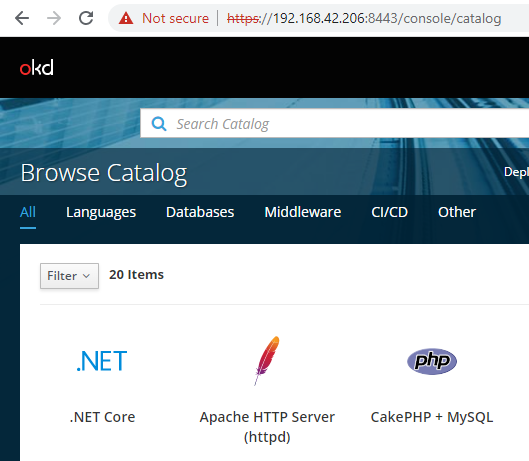
Launch a browser on the external host and go directly to https://192.168.42.206:8443/console/catalog

NOTE: if you attempt to login via https://192.168.42.206:8443/console , you will encounter this error/bug after entering your credentials (e.g., admin/admin)
Error: “Error. Invalid request. Client state could not be verified. Return to the console.”
Bug: “https://bugzilla.redhat.com/show_bug.cgi?id=1589072”
Found the solution (use the /console/catalog URL): https://github.com/openshift/openshift-azure/issues/236

after login with admin/admin credential

Other commands:
minishift delete –clear-cache (solution for error similar to: “Cannot start – error starting the VM: error getting the state for host: machine dies not exist-docker” when attempting to start minishift)
sudo virsh stop minishift; sudo undefine minishift; (might be needed if the “delete” command does not fix the issue)
sudo arp -a (on the KVM host to see the IPs of the minishift VM or SSH into the minishift VM)

– To restart the minishift VM (from the KVM host):
itababa@itamint:~$ minishift stop
itababa@itamint:~$ minishift start